Gitea + CI/CD — GitOps for a One-Person Homelab
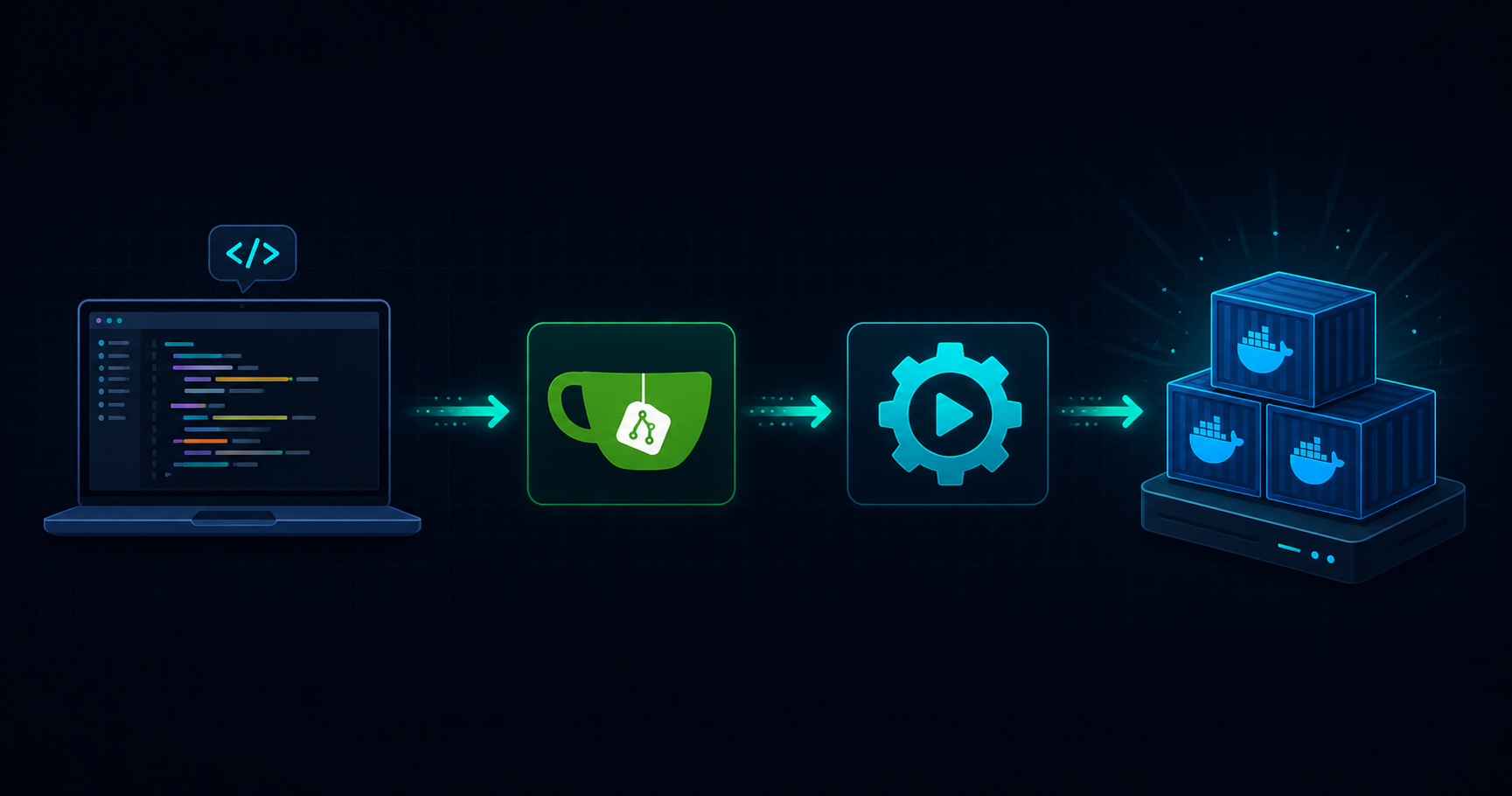
Part 5 of the Homelab Series — turning a manual deploy workflow into push-and-forget GitOps.
The “Just Run It Manually” Era
At this point in the series, I had Docker running all my services, Nginx routing traffic to clean subdomains, Cloudflare handling public access, and MeshCentral for remote management. Things were stable. But every time I wanted to change something — update a config, add a new service, tweak a dashboard — the workflow looked like this:
- Open MeshCentral, remote into the server
- Navigate to the right folder
- Edit files or pull changes
- Run
docker compose up -d - Check if it worked
- Close the remote session
For one service, this is fine. For 12+, it gets tedious. And the real problem isn’t the typing — it’s the context switching. I’d be on my laptop working on something, realize I need to update a service, remote in, do the thing, and by the time I’m back I’ve lost my train of thought.
I knew from work that CI/CD solves this. Push code, pipeline handles the rest. I just needed a self-hosted version of that.
Why Gitea
The obvious question: why not just use GitHub? I already have an account, the Actions are more mature, and the runners are free for public repos.
The answer is the runner. GitHub Actions runners are cloud machines that run your workflow steps — but they can’t reach my laptop. They can’t run docker compose up on a machine sitting behind my router. I’d need to self-host a GitHub Actions runner anyway, and at that point, why not self-host the whole thing?
With Gitea, the runner talks directly to the Docker daemon on my server. When a workflow says docker compose up -d, it’s literally starting containers on the same machine. No SSH tunnels, no deployment keys, no “push to GitHub → webhook triggers a script on my server” chain. The runner is the server.
Beyond that, I didn’t do a comparison. I didn’t evaluate GitLab vs Forgejo vs Gitea vs anything else. Gitea was the first self-hosted Git platform I found, I saw it had built-in Actions (same syntax as GitHub Actions), and I already knew GitHub workflows inside out. That was enough.
Sometimes the best tool is the one you don’t have to learn.
Setting Up Gitea
Gitea runs as a single Docker container with SQLite — no external database needed:
1
2
3
4
5
6
7
8
9
10
11
12
13
14
15
16
17
18
19
20
21
22
23
24
services:
  gitea:
    image: gitea/gitea:latest
    container_name: gitea
    restart: always
    environment:
      - USER_UID=1000
      - USER_GID=1000
      - GITEA__server__DOMAIN=git.yourdomain.com
      - GITEA__server__SSH_DOMAIN=git.yourdomain.com
      - GITEA__server__ROOT_URL=https://git.yourdomain.com/
      - GITEA__server__HTTP_PORT=3000
      - GITEA__database__DB_TYPE=sqlite3
      - GITEA__actions__ENABLED=true
      - GITEA__service__DISABLE_REGISTRATION=true
      - GITEA__repository__DEFAULT_PRIVATE=private
      - GITEA__repository__FORCE_PRIVATE=true
    volumes:
      - gitea-data:/data
    ports:
      - "3000:3000"
      - "2222:22"
    networks:
      - homeserver
The key lines:
GITEA__actions__ENABLED=true— without it, the Actions tab doesn’t even show up.DISABLE_REGISTRATION— you only need one account, no reason to leave signup open.FORCE_PRIVATE— all repos private by default. This is your personal server, not GitHub.
docker compose up -d, open the web UI, create an admin account, and you’ve got a GitHub-like interface running on your own hardware.
It looks and feels almost identical to GitHub. Repos, issues, pull requests, settings — all there. If you’ve used GitHub, you already know how to use Gitea.
The Runner — Where the Magic Happens
A Gitea instance without a runner is just a Git host. The runner is what executes your workflows — it’s the equivalent of GitHub’s hosted runners, except it runs on your server.
Getting the Registration Token
In the Gitea web UI: Site Administration → Runners → Create new Runner. It gives you a registration token. That’s what the runner uses to phone home and say “I’m available for jobs.”
Runner as a Docker Container
1
2
3
4
5
6
7
8
9
10
11
12
13
14
15
16
services:
  gitea-runner:
    image: gitea/act_runner:latest
    container_name: gitea-runner
    restart: always
    environment:
      - GITEA_INSTANCE_URL=http://gitea:3000
      - GITEA_RUNNER_REGISTRATION_TOKEN=${RUNNER_TOKEN}
      - GITEA_RUNNER_NAME=homeserver-runner
      - GITEA_RUNNER_LABELS=ubuntu-latest:docker://node:20-alpine
      - CONFIG_FILE=/config/runner-config.yaml
    volumes:
      - /var/run/docker.sock:/var/run/docker.sock
      - gitea-runner-data:/data
    networks:
      - homeserver
The runner config is minimal:
1
2
3
4
5
6
7
8
9
10
11
12
13
log:
  level: info

runner:
  file: .runner
  capacity: 1
  timeout: 3h

container:
  network: "homeserver"
  privileged: false
  valid_volumes:
    - "**"
Two things worth explaining:
/var/run/docker.sock mount — This is the critical piece. By mounting the host’s Docker socket into the runner container, the runner can control Docker on the host. When a workflow says docker compose up -d, it’s not running Docker-in-Docker — it’s talking directly to the host’s Docker daemon. That means the runner can start, stop, and rebuild any container on the server. This is what makes the whole thing work.
network: "homeserver" — The runner’s workflow containers join the same Docker network as everything else. This means during a deploy, the workflow container can reach other services by container name, and any containers it creates are automatically on the right network.
Labels
The label ubuntu-latest:docker://node:20-alpine tells Gitea: “When a workflow asks for runs-on: ubuntu-latest, spin up a node:20-alpine container to run it.” Alpine is tiny and fast — workflows start in seconds.
The Workflow Pattern
After iterating on a few services, I landed on a pattern that works for almost everything. Here’s what a typical deploy workflow looks like:
1
2
3
4
5
6
7
8
9
10
11
12
13
14
15
16
17
18
19
20
21
22
23
24
name: Deploy Service

on:
  push:
    branches: [main]
  workflow_dispatch:

jobs:
  deploy:
    runs-on: ubuntu-latest
    defaults:
      run:
        shell: sh
    steps:
      - uses: actions/checkout@v4

      - name: Install Docker CLI
        run: apk add --no-cache docker-cli docker-cli-compose

      - name: Deploy
        run: |
          docker compose pull
          docker compose up -d --remove-orphans
          docker compose ps
That’s it. Push to main, the runner checks out the code, installs the Docker CLI (remember, we’re in an Alpine container), and runs docker compose up -d using the host’s Docker socket.
For services that need a custom image built (like my DevToolbox):
1
2
3
4
5
6
7
8
9
      - name: Build and deploy
        run: |
          docker build -t dev-tools .
          docker stop dev-tools 2>/dev/null || true
          docker rm dev-tools 2>/dev/null || true
          docker run -d --name dev-tools --restart always \
            --network homeserver \
            --expose 8081 \
            dev-tools
For services with secrets (like database passwords):
1
2
3
4
5
6
7
8
9
      - name: Create .env
        run: |
          printf '%s\n' \
            "DB_PASSWORD=$" \
            "APP_SECRET=$" \
            > .env

      - name: Deploy
        run: docker compose pull && docker compose down && docker compose up -d
Secrets are stored in Gitea’s repo settings, same way you’d do it on GitHub. They never appear in logs.
Repo Structure — One Repo Per Service
Each service on the server has its own Gitea repo. The structure inside each repo is almost always the same:
1
2
3
4
5
6
7
service-name/
├── docker-compose.yml
├── .gitea/
│   └── workflows/
│       └── deploy.yml
├── config/           # (if the service has config files)
└── Dockerfile        # (if it needs a custom image)
Right now I have about 15 repos on Gitea, and every single one has a CI/CD workflow except for n8n workflows (those are JSON exports, not deployable code).
For the blog posts in this series, I also push everything to a single GitHub repo so readers can browse all the configs in one place. The Gitea repos are the source of truth; GitHub is just a public mirror.
The Deploy Flow — End to End
Here’s what happens when I push a change:
1
2
3
4
5
6
7
8
9
10
11
12
My Laptop                    Gitea                     Runner                    Docker
   │                           │                         │                         │
   ├── git push ──────────────►│                         │                         │
   │                           ├── webhook ──────────────►│                        │
   │                           │                         ├── checkout code         │
   │                           │                         ├── apk add docker-cli    │
   │                           │                         ├── docker compose up ────►│
   │                           │                         │                         ├── pull image
   │                           │                         │                         ├── recreate container
   │                           │                         │                         └── running ✓
   │                           │◄── status: success ─────┤                         │
   │                           │                         │                         │
The whole cycle takes about 30-60 seconds depending on whether images need pulling. I push from my laptop, and by the time I switch to the Homepage dashboard, the service is already updated.
What This Actually Changed
Before CI/CD, adding a new service meant remoting into the server, creating files, running commands, and hoping I didn’t forget a step. Now the process is:
- Create a new repo on Gitea
- Add
docker-compose.ymland.gitea/workflows/deploy.yml - Add the Nginx config for the subdomain
- Push
That’s it. The service is live. And honestly, steps 2 and 3 are so formulaic now that I just hand the service’s documentation to Copilot, tell it to follow the existing patterns, and it generates everything. I focus on what I want running, not how to deploy it.
The other thing that changed: I stopped worrying about the server. If something breaks, the fix is a code change and a git push. I don’t need to remote in, remember which folder things are in, or worry about running the wrong command. The workflow is the deployment. The repo is the documentation.
Tips
workflow_dispatch— Add this trigger to every workflow. It lets you re-run deploys from the Gitea UI without pushing a dummy commit.--remove-orphans— Use this withdocker compose upto clean up containers from renamed services.docker compose ps— Add this as the last step. It prints container status in the workflow logs so you can confirm the deploy worked without remoting in.- Don’t skip
shell: sh— The Alpine-based runner doesn’t havebash. Setshell: shin defaults or your workflows will fail with a confusing error.
The Bootstrap Problem — Deploying the Thing That Deploys
Every other service is simple: push code, runner deploys it. But what about Gitea and the runner themselves? The runner can’t redeploy itself mid-workflow — that’s like sawing the branch you’re sitting on.
Manual First-Time Setup
The first deploy is always manual. You need three files on the server in the same folder:
docker-compose.yml — defines both Gitea and the runner.
runner-config.yaml — the runner’s configuration (network, capacity, timeouts).
.env — contains RUNNER_TOKEN=<token from Gitea admin UI>.
Then:
1
2
3
4
docker compose up -d
docker exec gitea-runner mkdir -p /config
docker cp runner-config.yaml gitea-runner:/config/runner-config.yaml
docker restart gitea-runner
Why the extra docker cp? The obvious approach would be a bind mount in docker-compose — ./runner-config.yaml:/config/runner-config.yaml:ro — so the config file is always there when the container starts. And that works perfectly when you run docker compose up directly on the host.
But remember: future updates happen via CI. The workflow runner executes inside a container that talks to the host’s Docker daemon via the socket. When CI runs docker compose up -d gitea-runner, the ./ path resolves inside the workflow container — not on the host. Docker can’t find the file, creates an empty directory as a fallback, and the runner crashes with read /config/runner-config.yaml: is a directory.
So the config lives inside the container, copied in explicitly with docker cp.
CI/CD for Future Changes
Once the runner is alive, the infra repo’s workflow handles updates:
1
2
3
4
5
6
7
8
9
10
11
12
13
14
15
      - name: Deploy Gitea
        run: |
          cd bootstrap
          docker compose pull gitea
          docker compose up -d gitea

      - name: Stage runner config on host
        run: |
          docker cp bootstrap/runner-config.yaml gitea:/tmp/runner-config.yaml

      - name: Redeploy runner (fire-and-forget)
        run: |
          cd bootstrap
          docker compose pull gitea-runner
          nohup sh -c 'sleep 10 && docker compose -p homeserver-bootstrap up -d gitea-runner && sleep 3 && docker exec gitea-runner mkdir -p /config && docker cp gitea:/tmp/runner-config.yaml gitea-runner:/config/runner-config.yaml' >/dev/null 2>&1 &
The trick: fire-and-forget. The workflow spawns a background process that waits 10 seconds (for the workflow to finish and report success), then recreates the runner with any compose-level changes (new image, env vars, labels), and copies the config back in.
Why stage the config in the Gitea container? Because after the workflow ends, the checked-out files are gone — the workflow container is ephemeral. But the Gitea container is always running, so we stash the file there as a staging area for the background process to use later.
What Can Go Wrong
- The workflow always shows “success” even if the runner redeploy fails — because the fire-and-forget runs after the workflow exits. If something goes wrong, you won’t see it in the Gitea Actions UI. Check
docker psanddocker logs gitea-runneron the server. - If the runner image changes,
docker compose uprecreates the container, which briefly takes the runner offline. It comes back in seconds, but any workflow that triggers during those seconds will queue until it’s back. - If the Gitea container restarts between the “stage” step and the background process running, the
/tmp/runner-config.yamlfile is lost. Unlikely in practice since Gitea was just deployed seconds earlier, but worth knowing.
It’s not perfect. But it works, and the alternative is SSH-ing into the server every time I want to change a runner label — which defeats the whole point.
What’s Next
With Gitea handling deploys, the infrastructure was fully automated — Cloudflare for access, Nginx for routing, Docker for containers, MeshCentral for remote management, and Gitea for deployment. The foundation was complete.
Next up: the actual services — building a productivity stack with Telegram, Memos, Linkwarden, and n8n tying it all together.
All the code and configurations for my home server are open source: github.com/mavsankar/homeserver