Backup and Restore — Moving a Homelab to a New Machine
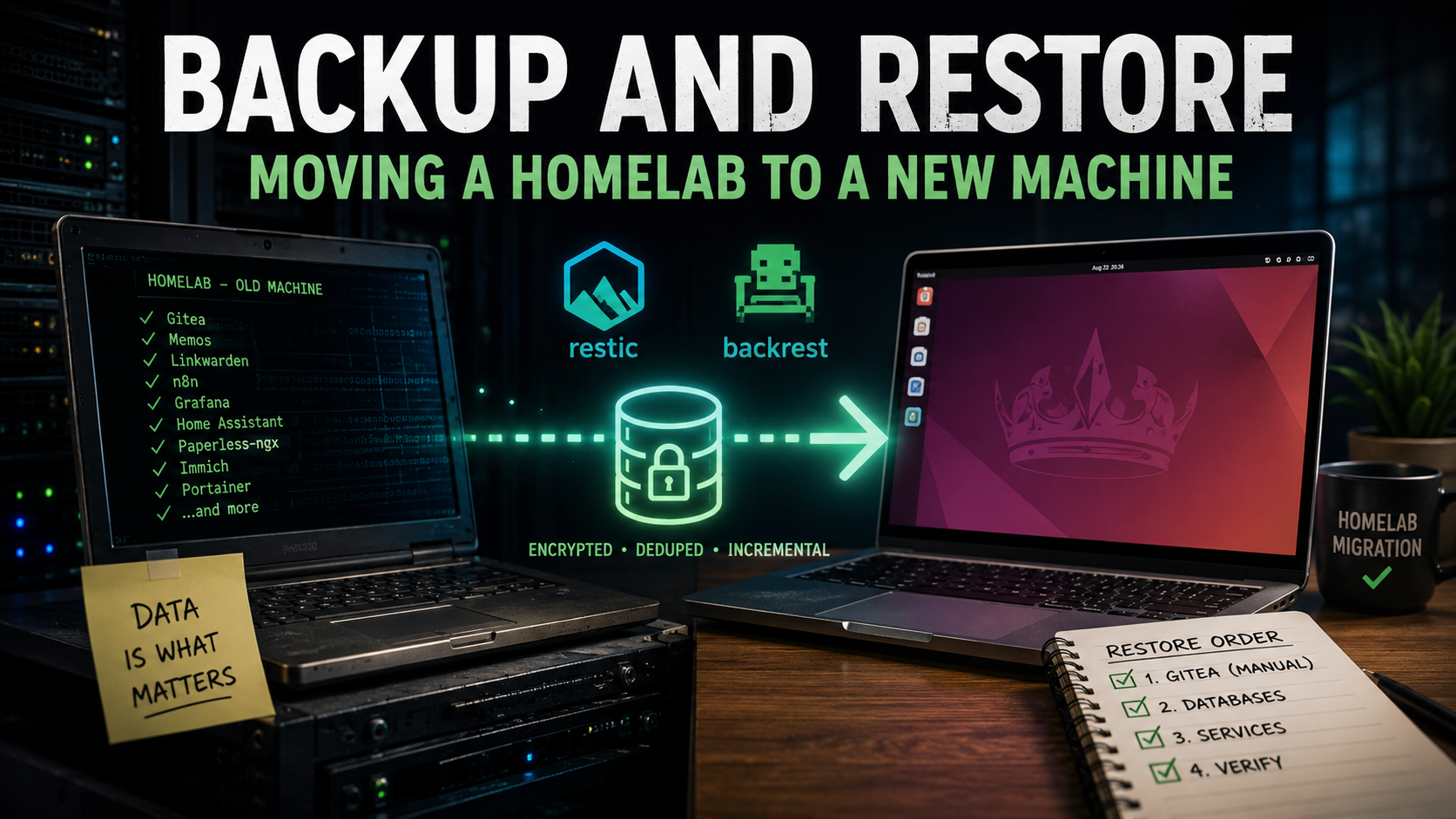
Part 7 of the Homelab Series — the day I moved every service to a different machine and found out whether my backups were real.
The Laptop Swap
Someone I know had a laptop that couldn’t run Windows 11. Mine — the screenless one from Part 1 that had been running my homelab for months — could. They asked if I’d swap, since they’d plug a monitor into it and use it as a normal computer.
Fair trade. But it meant the machine running 15+ services had to hand over its job to a laptop that Microsoft had declared obsolete.
Which is perfect, honestly. A machine that can’t run Windows 11 runs Ubuntu just fine, and I’d been wanting to move the homelab off Windows anyway. I picked Ubuntu purely because it’s the easiest to install — no deeper reasoning than that.
So the plan: move everything — every container, every database, every config — to a different machine, on a different OS, with as little downtime as I could manage.
This is the post about whether that worked.
Why I Set Up Backups in the First Place
Here’s the honest version: I didn’t set up backups because I lost data. I set them up because I knew a day like this was coming.
Most backup advice is framed around disaster — the disk dies, the house floods, ransomware. Those are real, but they’re abstract. The thing I could actually picture was wanting to move to better hardware and realising my entire setup existed only as accumulated state on one laptop.
Backups as a migration tool, not just an insurance policy. That reframing is what made me finally do it, and it turned out to be the right lens — because a backup you can migrate from is automatically a backup you can restore from.
The Mental Model: Only Three Things Exist
Once I started thinking about this properly, the whole server collapsed into three categories:
| Thing | Migrate it? | How it comes back |
|---|---|---|
| Images | No | Pulled fresh from Docker Hub / GHCR |
| Containers | No | Recreated by each repo’s deploy.yml |
| Volumes | Yes | Restored from the restic repo — this is your data |
Images and containers are disposable. They’re built from instructions, and I already had those instructions in Gitea from Part 5. Recreating them is just running the pipelines again.
Volumes are the only irreplaceable part. My Memos notes, Linkwarden bookmarks, n8n workflows, Grafana dashboards, Home Assistant config, and — critically — Gitea’s own data, which contains every repo and every CI secret.
That last one is the fun part. Gitea deploys everything, but Gitea can’t deploy itself. Restore Gitea’s volume and all your code comes back; you just have to start that one stack by hand first.
Backrest — restic With a UI
I use Backrest, which is a web interface on top of restic. Restic does the real work: encrypted, deduplicated, incremental snapshots.
I’d love to tell you I evaluated Borg, Kopia, and Duplicati. I didn’t. Backrest was the first thing I found that did what I wanted, it worked, and I moved on. Sometimes that’s the whole story.
The compose file has one trick worth stealing:
1
2
3
4
5
6
7
8
9
10
11
12
13
14
15
16
17
services:
  backrest:
    image: ghcr.io/garethgeorge/backrest:latest
    container_name: backrest
    restart: always
    environment:
      - BACKREST_PORT=0.0.0.0:9898
      - BACKREST_DATA=/data
    volumes:
      - backrest-config:/config
      - backrest-data:/data
      - backrest-cache:/cache
      - backrest-repos:/repos
      # every docker volume, read-only, under one path
      - /var/lib/docker/volumes:/userdata:ro
    networks:
      - homeserver
That /var/lib/docker/volumes:/userdata:ro line is the important one. Instead of listing each volume as a separate backup path and updating the config every time I add a service, I mount the entire Docker volume directory read-only. One backup plan, pointed at /userdata, running every 6 hours.
Add a new service tomorrow? Its volume is already being backed up. Nothing to configure.
Inside a snapshot, everything looks like this:
1
2
3
/userdata/homeserver-bootstrap_gitea-data/_data/...
/userdata/linkwarden_pgdata/_data/...
/userdata/memos_memos-data/_data/...
That <project>_<volume> naming is Docker’s own convention, and it’s completely deterministic. Which means a restored volume automatically reattaches to the right container when the pipeline recreates it. No mapping file, no manual wiring.
The Trap: Bind Mounts Are Silently Excluded
Here’s the thing that mount doesn’t cover, and the thing I’d most want a past version of me to know.
/var/lib/docker/volumes contains named volumes only. If a service uses a bind mount — a real path on the host — it isn’t in there, and it isn’t in your backup. Nothing warns you. The backup runs green every time.
I had two:
1
2
3
4
5
6
7
8
9
10
# kavita
volumes:
  - kavita-config:/kavita/config
  - ${BOOKS_PATH:-D:/Books}:/books   # a Windows path. not backed up.

# zipline
volumes:
  - ./uploads:/zipline/uploads       # relative host path. not backed up.
  - ./public:/zipline/public
  - ./themes:/zipline/themes
My Kavita library and every Zipline upload existed on exactly one disk, in exactly one place, with a backup system that was quietly ignoring them.
I copied a few things across by hand during the migration and reset the rest. Then I fixed the actual problem so it can’t recur:
1
2
3
volumes:
  kavita-config:
  kavita-books:      # now a named volume
The rule I follow now is simple: if data must survive, it goes in a named volume. Bind mounts are for configuration that lives in Git and for the Docker socket. Nothing else.
There’s a real cost to this — my library now inflates the backup repo — but restic deduplicates, so only the first run is expensive. That’s a trade I’ll take over discovering the gap during a restore.
Getting the Backup to the New Machine
The restic repo lived on the old machine. The new machine needed to read it — ideally without me shuffling external drives around.
Restic supports a REST backend, so I added a sidecar to the backup stack that serves the same repo over HTTP:
1
2
3
4
5
6
7
8
9
10
11
12
  restic-rest:
    image: restic/rest-server:latest
    container_name: restic-rest
    restart: always
    environment:
      - OPTIONS=--append-only
    expose:
      - "8000"
    volumes:
      - backrest-repos:/data   # the same repo Backrest writes to
    networks:
      - homeserver
Then a normal Nginx server block, routed through the Cloudflare Tunnel from Part 2, same as every other service.
Three things make this safe enough to expose:
- The repo is encrypted. Restic encrypts client-side, so the endpoint only ever serves ciphertext.
--append-only. Anyone reaching it can write and read, but cannot delete snapshots.- HTTP basic auth, from a
.htpasswdfile that CI generates from Gitea secrets:
1
2
3
4
5
6
7
8
9
10
11
12
      - name: Write restic-rest auth file
        env:
          RESTIC_REST_USERNAME: $
          RESTIC_REST_PASSWORD: $
        run: |
          docker volume create backrest_backrest-repos
          auth_line="$(printf '%s\n' "$RESTIC_REST_PASSWORD" | \
            docker run --rm -i httpd:2.4-alpine \
              htpasswd -niB "$RESTIC_REST_USERNAME")"
          printf '%s\n' "$auth_line" | \
            docker run -i --rm -v backrest_backrest-repos:/data alpine \
              sh -c 'cat > /data/.htpasswd'
The password hash never exists in the repo — CI generates it at deploy time from a secret. Same pattern as every other credential in this setup.
Restoring: One Script, One Rule
The restore is a single script copied to the new machine — restore-from-backrest.sh — and it exists because of the bootstrap problem. Gitea can’t deploy Gitea, so something has to exist before Gitea does.
It’s the only thing I run by hand on a server. Everything else in this homelab goes through CI/CD.
What it does, in order:
- Install Docker if it’s missing
- Verify the snapshot looks right before touching anything
- Create and fill each named volume
- Create the
homeservernetwork - Start Gitea and wait for it to be healthy
- Pause
- Start the runner, then trigger every deploy pipeline
Verify before you write
The first thing it does with the snapshot is check the shape of it:
1
2
3
4
5
6
7
8
9
10
11
mapfile -t volumes < <(
  sed -nE 's#^/?userdata/([A-Za-z0-9_.-]+)/_data(/.*)?$#\1#p' "$LIST_FILE" |
    sort -u
)

((${#volumes[@]} > 0)) || fail \
  "Snapshot has no /userdata/<volume>/_data paths."

if [[ ! " ${volumes[*]} " =~ " homeserver-bootstrap_gitea-data " ]]; then
  fail "Snapshot does not contain Gitea data."
fi
If the snapshot doesn’t contain what a working restore needs, the script stops before creating a single volume. A restore that fails immediately is dramatically better than one that half-succeeds.
Restore through Docker, not around it
This is the part I’d emphasise most. It’s tempting to restore the snapshot to a staging folder and rsync it into /var/lib/docker/volumes/. Don’t. That directory is Docker’s internal bookkeeping, not just data — it has its own metadata layout, and overwriting it wholesale is asking for a corrupted daemon.
Instead, create each volume properly and let restic write into it through a container:
1
2
3
4
5
6
7
8
9
10
11
12
13
14
15
for volume in "${volumes[@]}"; do
  docker volume create "$volume" >/dev/null

  # never overwrite a volume that already has data
  if ! docker run --rm -v "$volume:/restore" alpine \
    sh -c 'test -z "$(find /restore -mindepth 1 -maxdepth 1 -print -quit)"'; then
    fail "Volume $volume is not empty."
  fi

  docker run --rm \
    -e RESTIC_REPOSITORY -e RESTIC_PASSWORD \
    -e RESTIC_REST_USERNAME -e RESTIC_REST_PASSWORD \
    -v "$volume:/restore" \
    restic/restic restore "$SNAPSHOT:/userdata/$volume/_data" --target /restore
done
Docker creates the volume and its metadata. Restic only ever writes file contents. The <snapshot>:/subfolder syntax restores that subfolder’s contents to the target, so files land at the volume root rather than nested inside a rebuilt path.
The empty check matters too: rerun the script and it refuses rather than silently merging a fresh restore into existing data.
The Ordering Problem Nobody Mentions
Here’s the part that has nothing to do with backups and everything to do with a successful migration.
While the restore runs, both machines are alive. The old one is serving the backup over HTTPS and still running every service. The new one is filling up with a copy of that same state.
Two things must never overlap:
- Two CI runners. Both register against the same restored Gitea database. Trigger a deploy and either machine might pick up the job.
- Two Cloudflare tunnels. Both hold the same tunnel token, so traffic gets distributed between a live server and a half-built one.
So the script does the restore, brings up Gitea, confirms it’s healthy — and then stops and waits:
1
After the old machine is fully powered off, type OLD-HOST-OFF:
Only after that does it start the runner and trigger deployments. And it deliberately queues the reverse proxy last, so the new tunnel connects only once everything behind it is actually running.
The download needs the old machine up. The cutover needs it down. That checkpoint is the seam between those two facts, and it’s the single most important line in the script.
Recreating the Services
Once Gitea is back with all its repos and secrets, every service is just a pipeline run away. The script discovers the repos through Gitea’s API and pushes an empty commit to each one that has a deploy workflow:
1
2
git -C "$repo_dir" commit --allow-empty -m "Trigger deployment after server restore"
git -C "$repo_dir" push --quiet origin "HEAD:$default_branch"
An empty commit is enough to fire on: push, and the existing pipeline does the rest — pull the image, write .env from secrets, docker compose up -d. The containers come up and attach to the volumes that were already restored.
One repo gets skipped on purpose: infra, because its workflow redeploys the runner that’s currently executing the migration. Restarting your own runner mid-migration is exactly as fun as it sounds. I push that one manually afterwards.
What It Actually Cost
- ~8 GB of restored data across roughly 25 named volumes
- 20–30 minutes for the restore itself
- 10–20 minutes for the pipelines to rebuild every service
- 40–45 minutes of total downtime
And the detail I’m least proud of: this was the first time I ever restored anything. Backups had been running every 6 hours for months, and I had never once tested them. The migration was the test.
It worked. But “it worked” and “I knew it would work” are very different sentences, and I only get to say the first one.
Things Worth Knowing Before You Try This
A few things that cost me time, in case they save you some:
- Windows paths break loudly on Linux.
D:/Booksisn’t a valid bind mount on Ubuntu — Docker refuses to start the container. Another argument for named volumes. - The GPU needs more than a driver.
nvidia-smiworking on the host doesn’t mean containers can use the GPU. You need the NVIDIA Container Toolkit, andnvidia-persistencedenabled so it survives a reboot. - Agents remember ports. MeshCentral advertises whatever port it listens on, so its agents were trying to reach a port Cloudflare doesn’t serve. Matching the internal port to the public one fixed it.
- Anything running natively needs a new home. MeshCentral had been running directly on Windows since Part 4, with Nginx reaching it through
host.docker.internal. That address doesn’t exist on Linux, so I finally containerised it — which is where it should have been all along. Now it’s a compose file like everything else, deployed by a pipeline, with its data in a named volume that Backrest picks up automatically. - Secrets outlive snapshots. My Git credential was newer than the snapshot, so the restored Gitea had never seen it. First push failed until I re-authenticated.
The Gap I Still Have
The restic repo lives in a Docker volume — which sits inside /var/lib/docker/volumes, which is the exact directory being backed up. The repository is inside the thing it protects.
For migration, that’s fine: the old machine was healthy and serving it over HTTPS. For actual disaster recovery, it’s not a backup at all. If that disk dies, the data and every snapshot die together.
The fix is to point restic at Backblaze B2 or S3 instead. That’s next on my list.
What I’d Tell Myself Six Months Ago
- Test a restore before you need one. Even restoring a single file proves more than months of green checkmarks.
- Named volumes for anything that matters. Bind mounts are invisible to a volume-based backup, and nothing tells you.
- Get the repo off the machine. Local-only is a migration tool, not a disaster plan.
- Write down the order. Which service comes up last, and what must be switched off first, matters more than the restore command itself.
The migration itself was almost boring, which is the highest praise I can give it. Forty-five minutes, one script, one manual checkpoint, and a laptop Microsoft gave up on quietly took over from the one it replaced.
What’s Next
The homelab now runs on Linux, with a restore path I’ve actually used instead of one I hoped would work. The next thing I want to push on is the GPU.
Next up: running local AI on a laptop GPU — Ollama, Open WebUI, and what a modest GPU can and can’t realistically do.
All the code and configurations for my home server are open source: github.com/mavsankar/homeserver